 color palettes
Turn image colors into a usable website palette
An image can suggest a direction. It cannot decide which color should carry a paragraph, a button or a focus ring. Make those decisions in a second, explicit step.
Reviewed 7 October 2026 · 4 min read
Find the color you want to keep
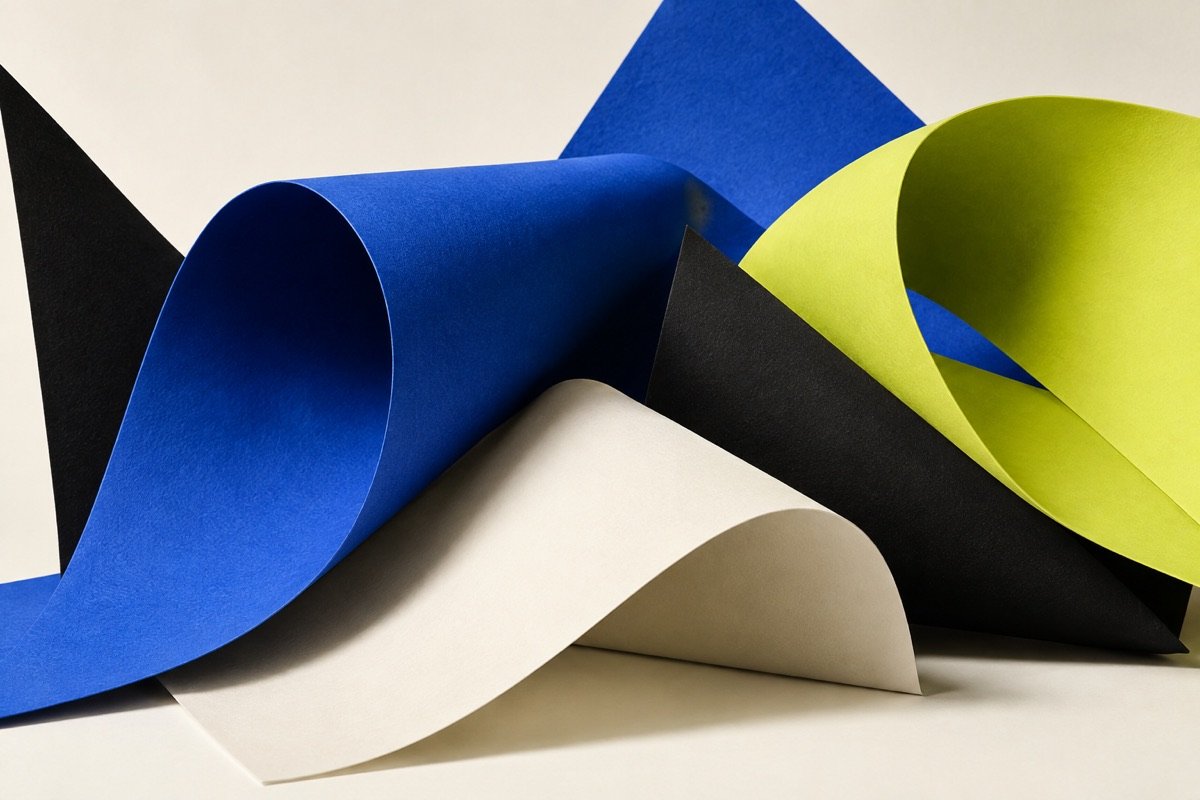
Open “Start from an image” in the studio. Choose a PNG, JPEG or WebP, or try this site’s original color study. The tool displays a small set of representative colors with their approximate share of sampled visible pixels. Choose four, six or eight candidates. If the image contains fewer distinct colors, the tool returns fewer rather than padding the list with invented swatches.
You can also click a point in the image. Keyboard users can focus the image button, move with the arrow keys, and press Enter to select. Shift plus an arrow moves ten preview pixels. The selected hex remains visible and copyable before you build anything.
Keep a starting color separate from its interface roles
Click “Build themes from this color.” The selected value becomes the exact brand reference in a light and dark website system. Existing locks, your chosen color relationship and the selected text-contrast target are respected. Some interface roles can adapt to reach contrast requirements; the original reference stays visible and is included in exports. One Undo restores the project you had before.
A pale yellow from a photograph might make a good accent fill but a poor text link on ivory. A deep blue may work as a light-theme button and need a lighter adaptation against a dark surface. The paired-theme worked example shows why an original brand and an applied role should be stored separately.
What “extracted” means here
The browser decodes the image and draws an sRGB sample with a maximum long edge of 160 pixels. Fully transparent pixels are ignored; partially transparent samples are composited on white. Weighted k-means groups the visible sample colors in Oklab. The centers are seeded deterministically, and each returned hex is a sampled representative near its cluster’s center. The percentage describes sample pixels assigned to that group, not the exact area of an object in the original photograph.
The point picker uses the displayed preview, with a maximum long edge of 720 pixels. Resizing, image color profiles, the browser’s decoding and canvas privacy protections can influence sampled values. It is not a promise to recover an original brand specification from a compressed screenshot. For an exact known brand value, enter that hex directly instead.
The browser canvas API documentation explains pixel read-back and its limits. Oklab’s author describes the color space used for grouping.
Give the picture an honest role
A large neutral background can dominate extraction. A small, vivid object may be the part you actually want your website to echo. The candidates and point picker let you make that choice deliberately. A high percentage is not a quality score.
Images with shadows can produce several dark candidates that look related. Try a smaller candidate count for a simpler direction. To exclude a large background region, crop the image in your image editor before selecting it. The studio does not claim object recognition, automatic brand detection or a calibrated print-color match.
Check the result, then export the system
Inspect both themes in the website, dashboard or editorial preview. Read the exact component pairs, including muted text on surfaces, button hover labels and focus rings. Review proposed repairs before applying them. Use color-vision inspection to consider how meaning survives when hues change; keep labels and other visible cues.
Export CSS or Tailwind tokens for implementation, project JSON for an editable backup, or the contrast report for a record of the checked pairs. Share links contain the project colors and locks, never the image. If a file download is blocked, copy the visible export into a file.
Where the image goes
The selected file is decoded and analyzed in this tab. There is no image upload endpoint, external image-processing service, account or application storage. Clear image removes its preview and samples from the tab without changing your color project. Closing or reloading the page also discards the image. Loading our example makes a normal request for the site’s public artwork; it does not send your own image anywhere.
The limit is 15 MB and 40 million pixels to bound decoding and processing. Invalid, unsupported or fully transparent images produce an explicit message and keep your current project intact.
Choose a color worth keeping
Bring an image, then turn the chosen color into a checked website system.
Open image-to-theme workflow ↗Our examples use original palette values and the WCAG 2.2 calculation. Full methodology and primary sources.
← All field notes